 ScreenFace
Screen recorder with face cam for iPhone

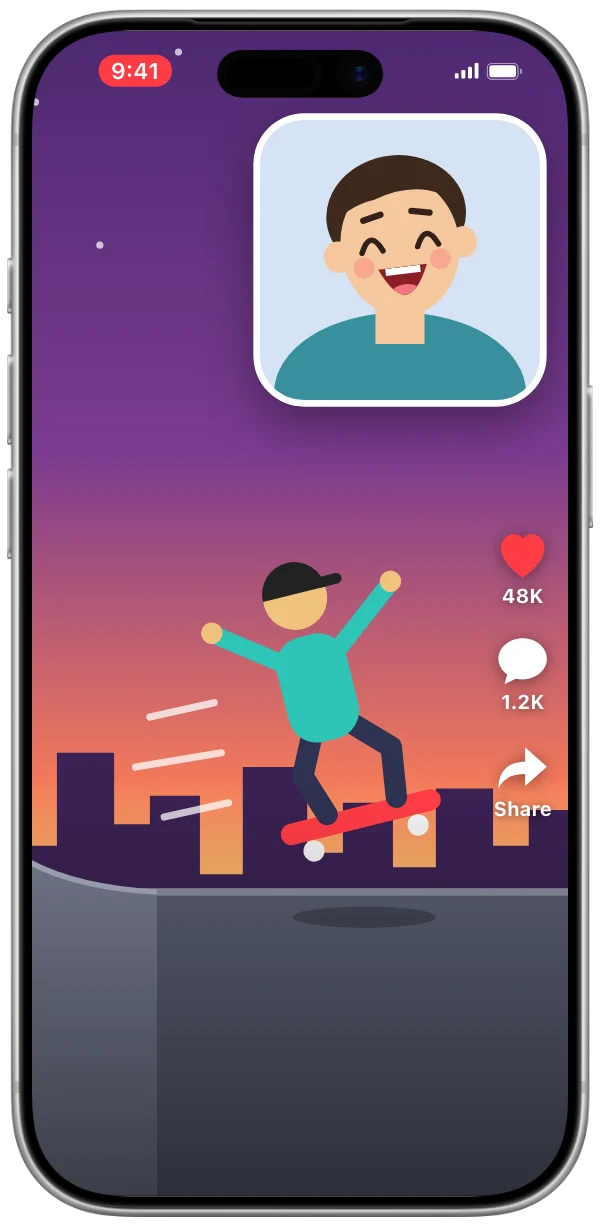
Your face over any app
Games, feeds, websites or your own app. Your face floats on top and records with the screen, your voice and the app’s sound.
How it works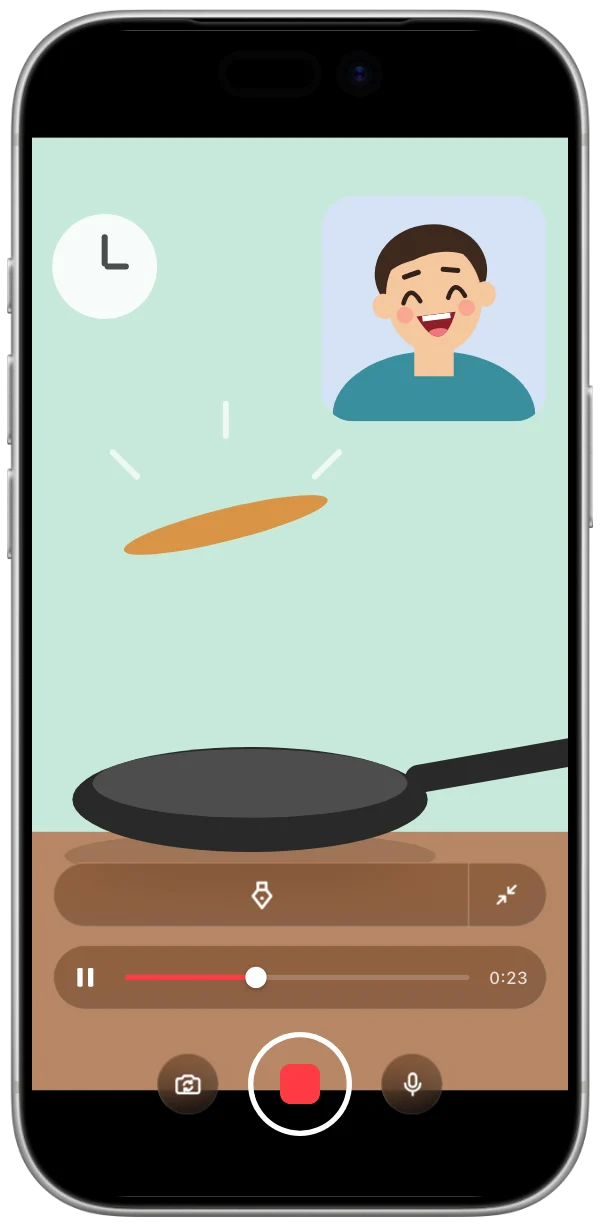
React to anything
Put your face over any video or photo, or a blank canvas. Pause or skip while the camera keeps rolling.
Make a reaction video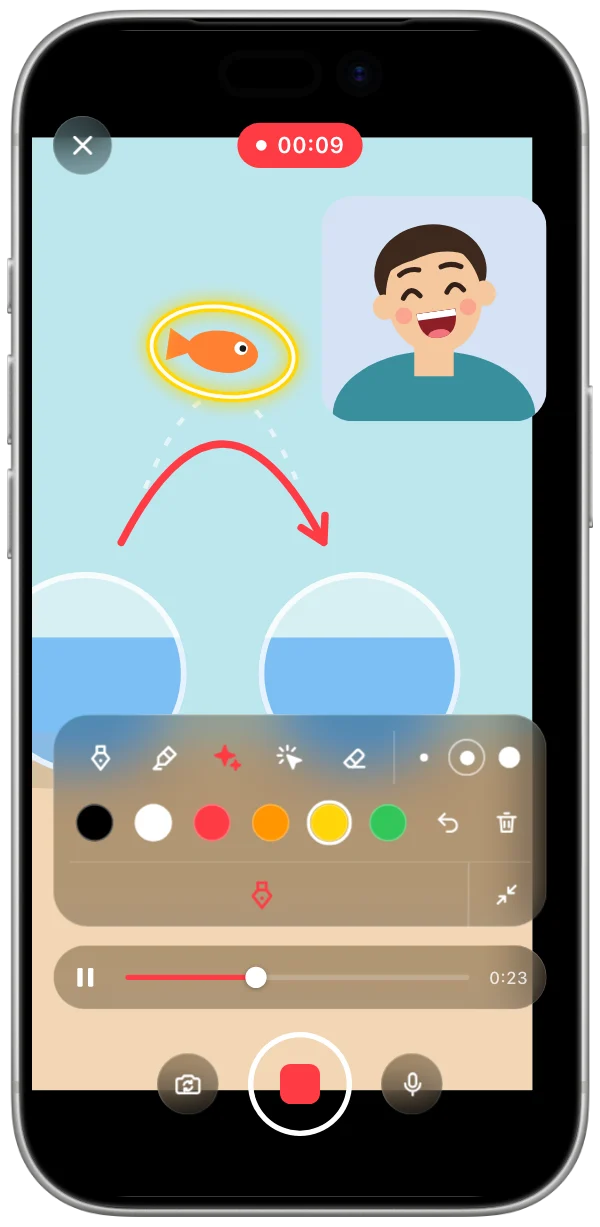
Draw as you react
Circle the moment with a pen, marker, neon or laser, right into the video.
About drawing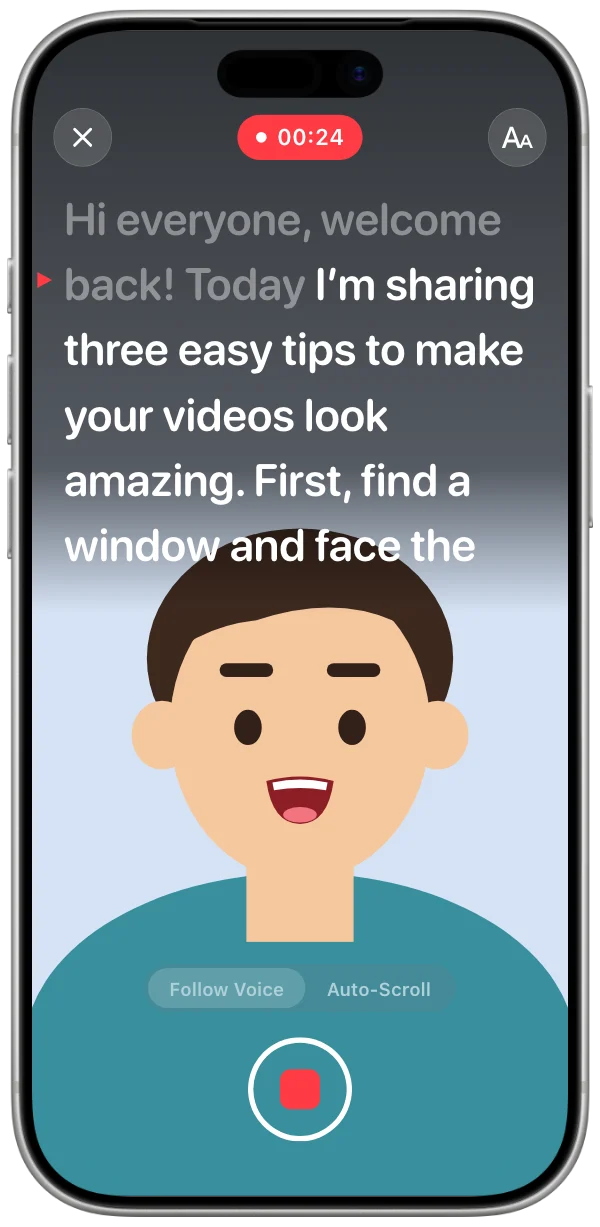
A teleprompter that follows your voice
Read your script to the camera. It scrolls as you speak, right under the lens.
Use the teleprompter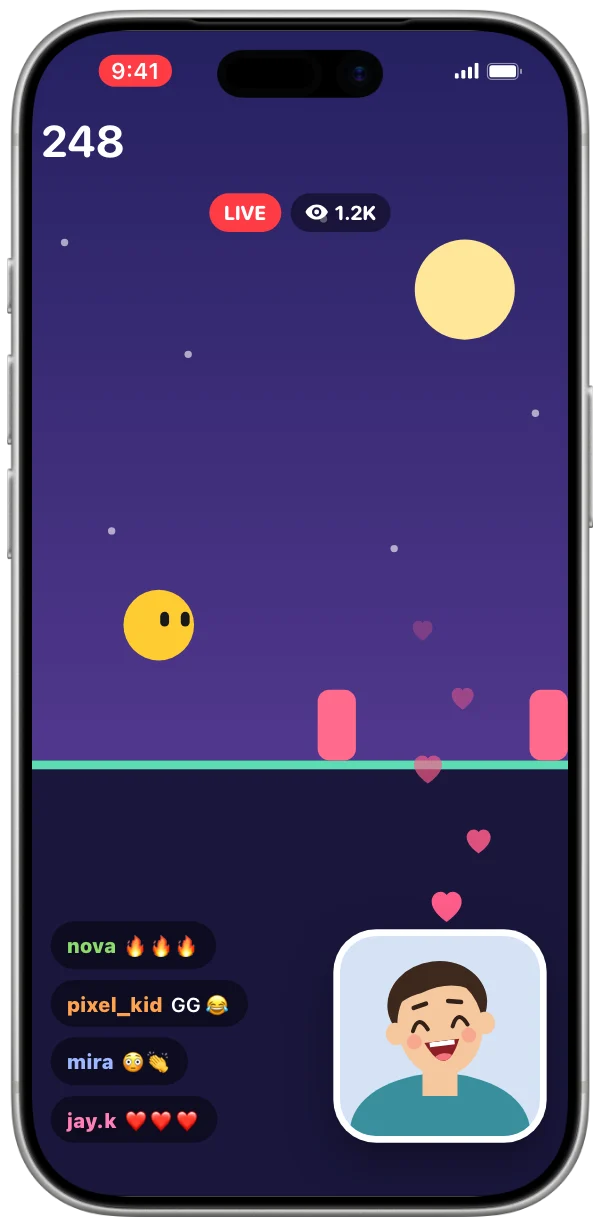
Go live on Twitch and YouTube
Stream your screen and face to Twitch, YouTube or any RTMP server.
How to go live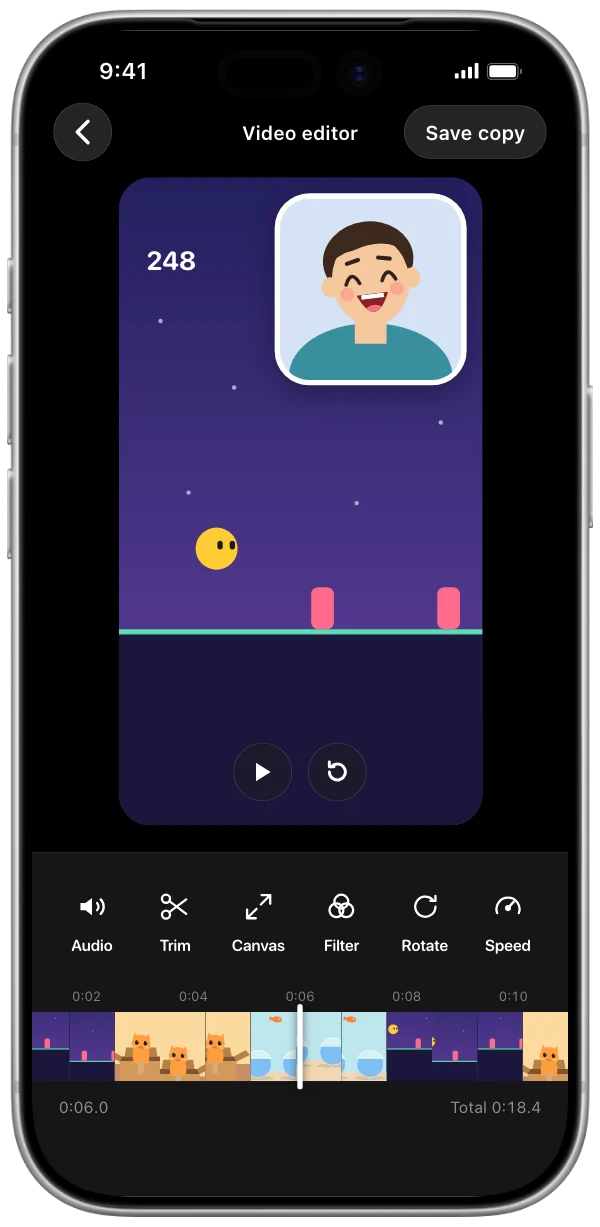
Edit and share
Trim, reframe, filter, rotate and change speed. Set your voice and the app sound separately. Up to 4K at 60 fps.
About soundPricing
Free
$0
5 recordings
Lifetime
$9.99
Unlimited
No watermark · No subscription · No account · Videos stay on your iPhone · 44 languages
ScreenFace at a glance
- What it is
- An iPhone app that records your screen with your face on top. It also makes reaction videos, has a teleprompter that follows your voice and streams live to Twitch and YouTube.
- Price
- Free for 5 recordings. Then ScreenFace Lifetime, a one-time purchase of $9.99 in the US (local prices vary).
- Subscription
- None. Pay once for unlimited recordings.
- Watermark
- None, including on free recordings.
- Requirements
- iPhone with iOS 18 or later.
- Privacy
- No account, no ads, no tracking. Your videos stay on your iPhone.
Questions
How do I screen record with my face on iPhone?
Open ScreenFace and tap React to any app. Tap the record button, turn on the microphone in the iOS prompt and start the recording, then open any app. Come back and tap stop. You get one video with the screen and your face together. Full guide
Does it record my voice and the app’s sound?
Yes. Turn on the microphone in the iOS screen recording prompt for your voice; the app’s sound is recorded too. They’re kept as separate tracks, so you can set each volume in the editor.
How do I make a reaction video on iPhone?
Open ScreenFace, tap React to anything, choose a video or photo, place your face and record while it plays. You can pause, skip and draw while you talk. Make a reaction video
Can I live stream to Twitch or YouTube?
Yes. Go live streams your screen and face cam to Twitch, YouTube or any RTMP server, in portrait or landscape at 720p or 1080p. Live streams don’t use your free recordings. How to go live
How much does ScreenFace cost?
It’s free for 5 recordings, with every feature and no watermark. After that, ScreenFace Lifetime is a one-time purchase of $9.99 in the US for unlimited recordings. There’s no subscription.
How is it different from iPhone’s screen recorder?
It uses the same iOS screen recording, and adds your face on top, reaction videos, a teleprompter, live streaming, separate voice and app volumes, an editor and quality settings. Full comparison
Which iPhones does it work on?
Any iPhone running iOS 18 or later. On iOS 27 and later, recording starts right from the app. On iOS 18 to 26, you tap Start Broadcast in the iOS broadcast sheet.
Why is part of my recording black?
Some apps, such as many streaming apps, block screen recording to protect their content. iOS shows that content as black in every screen recording.
Does ScreenFace upload my recordings?
No. Recording, editing and storage all happen on your iPhone. There are no accounts, analytics or trackers. Privacy policy