 ScreenFace
How to Screen Record with Sound and Your Voice on iPhone
An iPhone screen recording can include both the app’s own sound and your voice. Turn on the Microphone in the screen recording controls to add your voice; the app’s sound is recorded automatically. With ScreenFace, your face is added on top, and your voice and the app sound are kept on separate tracks so you can balance them later.
With the built-in screen recorder
- Open Control Center. If you don’t see the Screen Recording button, add it from the Control Center edit menu.
- Touch and hold the Screen Recording button and turn Microphone on.
- Start recording, use the app, then tap the red indicator to stop. The video goes to Photos.
The built-in recorder mixes everything into one track, so if the app is loud, there’s no way to turn it down under your voice afterwards. It also can’t show your face.
With ScreenFace
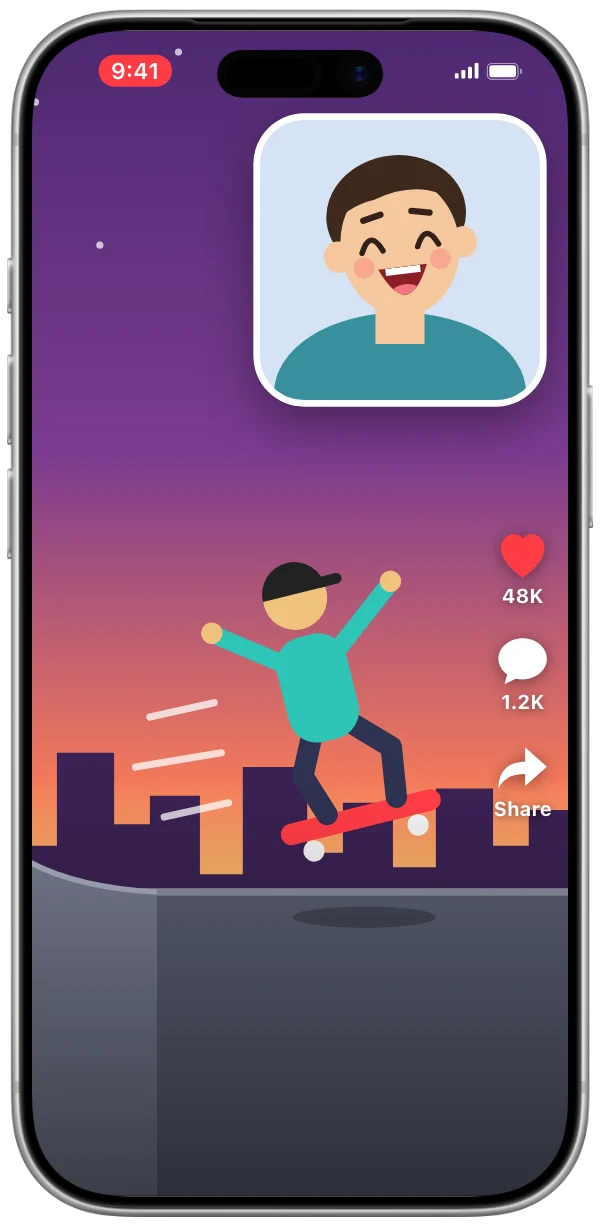
- Open ScreenFace, tap React to any app, then tap the record button.
- In the iOS recording prompt, turn the microphone on, then tap Share Entire Screen. On iOS 18 to 26 it’s the Microphone button in the broadcast sheet, before you tap Start Broadcast.
- Use any app, then come back and tap stop.
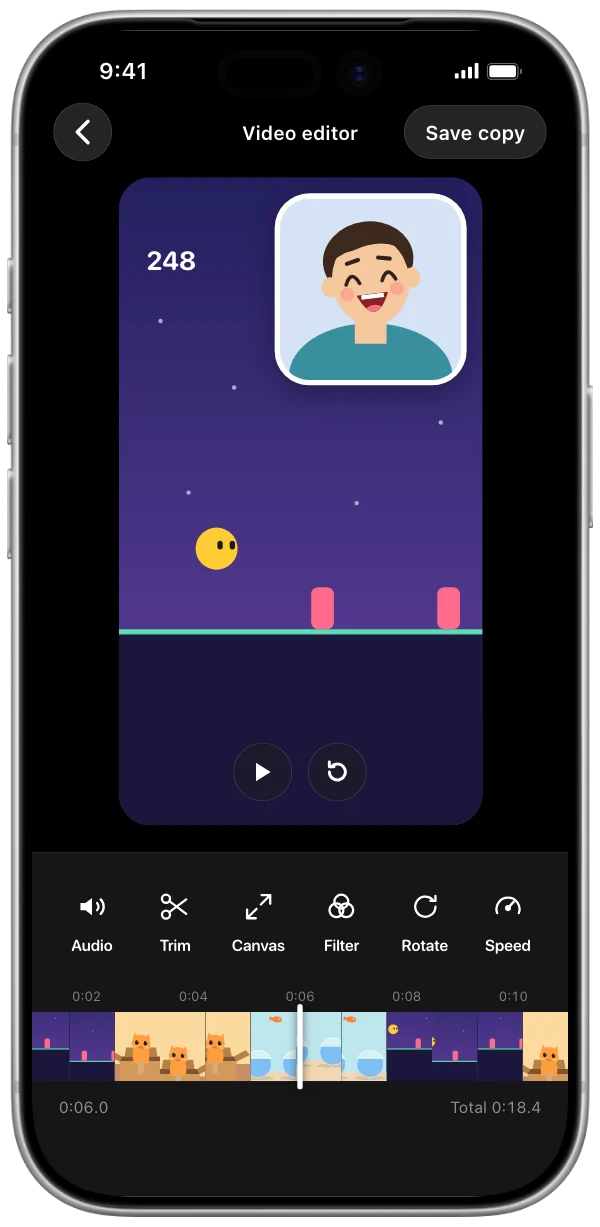
- Open Edit and tap Audio. You get separate Voice and Screen volume sliders, each from 0 to 200%.
How ScreenFace keeps your voice clean
ScreenFace uses Apple’s echo-cancelled microphone input, which removes most of the app’s sound that the microphone would otherwise hear from the speaker. The app sound itself is captured digitally, so it stays clear. The two are saved as separate tracks plus a ready-made mix, so the video plays normally in Photos and other apps, while the editor can still adjust each one.
Sound in reactions and teleprompter takes
In React to anything, your voice and the video’s sound are kept apart too, with Voice and Video sliders in the editor. The mute button beside Record silences your voice from that moment, and the speaker button in the play bar leaves the video’s sound out. Teleprompter takes record your voice on one track with a single Volume slider.
If the sound is missing
- No app sound? Turn off Silent mode. Many games and apps go quiet in Silent mode, and so does the recording. Check the volume too.
- No voice? The microphone was off in the recording prompt, microphone access is turned off for ScreenFace in Settings, or, in a reaction, the mute button was on.
- Echo or doubled sound? Use headphones. The microphone can’t hear the app at all, and the app sound still records.
- Silent streaming apps? Apps that protect their content often block both their picture and their sound from screen recordings.
Frequently asked questions
Does iPhone screen recording record internal audio?
Yes. The app's own sound is recorded automatically. Your voice is added only when the microphone is turned on.
How do I screen record with my voice on iPhone?
Turn on the microphone in the screen recording controls before you start. In ScreenFace, it's in the iOS recording prompt that opens when you tap record.
Why is my screen recording silent?
Usually Silent mode is on, which mutes many games and apps, or the app blocks screen recording. Turn Silent mode off and check the volume.
Can I make the app quieter than my voice after recording?
With ScreenFace, yes. The editor has separate Voice and Screen sliders from 0 to 200%. The built-in recorder saves only one mixed track.