 ScreenFace
How to Live Stream Your iPhone Screen to Twitch or YouTube
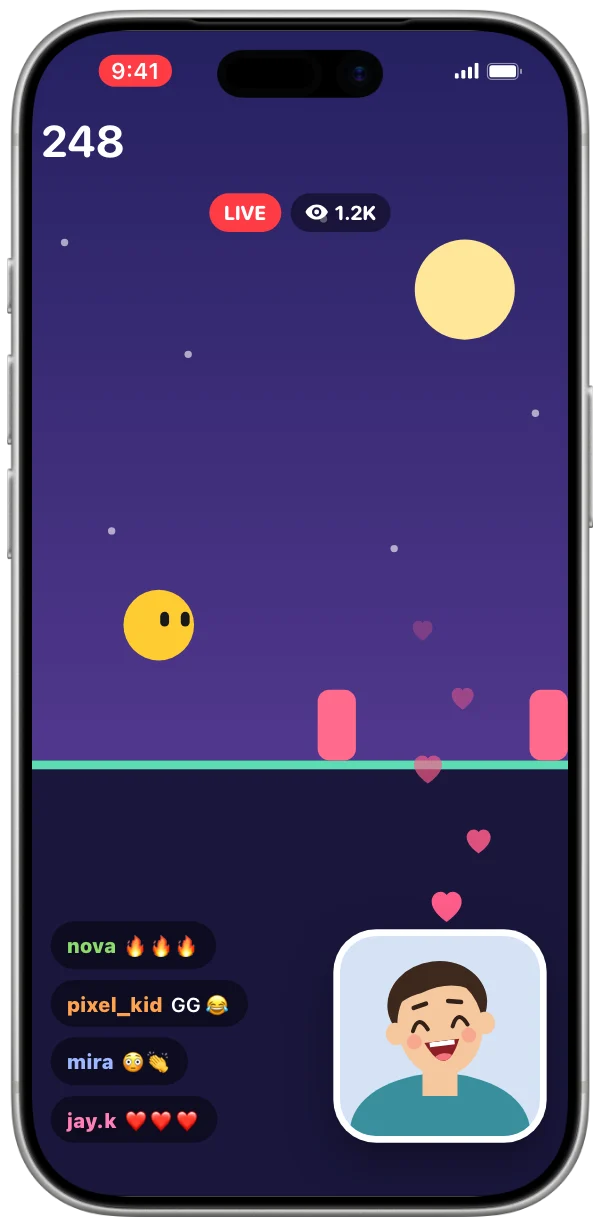
To live stream your iPhone screen with your face on Twitch or YouTube, open ScreenFace, tap Go live, add your stream key, then start the iOS screen broadcast and open any app. Viewers see your screen with your face cam on top, and hear the app and your voice.
What you need
- An iPhone running iOS 18 or later, and the ScreenFace app.
- A Twitch or YouTube account that can stream, or any other service that gives you an RTMP or RTMPS address. YouTube asks you to turn on live streaming once; the first time can take up to 24 hours.
- A steady Wi-Fi or 5G connection.
Step by step
- Find your stream key. On Twitch it’s in the Creator Dashboard under Settings → Stream. On YouTube it’s in YouTube Studio under Create → Go live → Stream. ScreenFace’s Find your stream key link opens the right page.
- Tap Go live. It’s on the second page of the Record tab. A setup page opens and your face cam starts floating, so you can drag it into place.
- Add your stream key. Tap the settings pill under the title. Choose Twitch, YouTube or Other, paste your key, pick Portrait or Landscape and 720p or 1080p, then tap Save. Other is for any
rtmp://orrtmps://server, such as Kick, Facebook or a restream service. - Go live. Tap the red button. In the iOS prompt, turn on the microphone so viewers hear you, then tap Share Entire Screen (on iOS 18 to 26, Start Broadcast). When the server confirms, the page shows a red LIVE badge and a timer.
- Open any app. Swipe up and open the game or app you want to show. Your face floats on top.
- End the stream. Come back to ScreenFace and tap stop, or stop from the iOS recording indicator.
What viewers see
The stream shows your whole screen, including the face cam, in a fixed portrait or landscape frame with black bars, so turning the phone mid-stream doesn’t change the stream’s size. It’s sent at 30 fps in H.264, at 3.5 Mbps for 720p or 6 Mbps for 1080p, with the app’s sound and your voice mixed into one stereo track. On a slow network ScreenFace lowers the bitrate and raises it again when the connection recovers.
Twitch and YouTube streams use RTMPS, so your stream key is never sent in clear text. Each platform’s key is kept in your iPhone’s Keychain.
If it doesn’t go live
- Couldn’t go live usually means the key was rejected or the server couldn’t be reached. Copy the key again and check the server address.
- Live stream ended means the connection dropped or the server stopped accepting video. Move closer to your Wi-Fi or switch to 720p.
- No sound from you? The microphone was off in the iOS prompt.
Tips for a smooth stream
- Turn on Do Not Disturb. Notifications and banners are streamed along with everything else.
- Use 720p on mobile data. It needs about half the upload speed of 1080p.
- Pick the orientation for your audience. Portrait suits vertical feeds; landscape suits Twitch and YouTube on a TV or computer.
- Do a test stream. A private or unlisted stream is an easy way to check your key and sound before going public.
Does it use free recordings?
No. A live stream doesn’t save a video and doesn’t use any of your 5 free recordings. Once the free recordings are used, Go live needs ScreenFace Lifetime, like the record cards.
Frequently asked questions
Can you live stream your iPhone screen to Twitch?
Yes. In ScreenFace, tap Go live, choose Twitch, paste your stream key and start the broadcast. Viewers see your screen with your face cam on top.
Can I stream to YouTube, Kick or Facebook?
YouTube is built in. For Kick, Facebook or a restream service, choose Other and enter its rtmp:// or rtmps:// server address and stream key.
What quality is the live stream?
720p or 1080p at 30 fps, in portrait or landscape. 720p needs about half the upload speed of 1080p.
Do live streams use my free recordings?
No. Live streams don't save a video and don't use your 5 free recordings. Once those are used, going live needs ScreenFace Lifetime.