 ScreenFace
How to Use a Teleprompter on iPhone
To use a teleprompter on iPhone, open ScreenFace, tap Teleprompter, add your script and tap record. With Follow Voice on, the script scrolls by itself as you read, keeping the next word on the reading line just below the camera.
A teleprompter lets you talk to the camera without memorising lines or looking down at notes. Because the script sits at the top of the screen, right under the front camera, your eyes stay close to the lens and viewers feel you’re looking at them.
Step by step
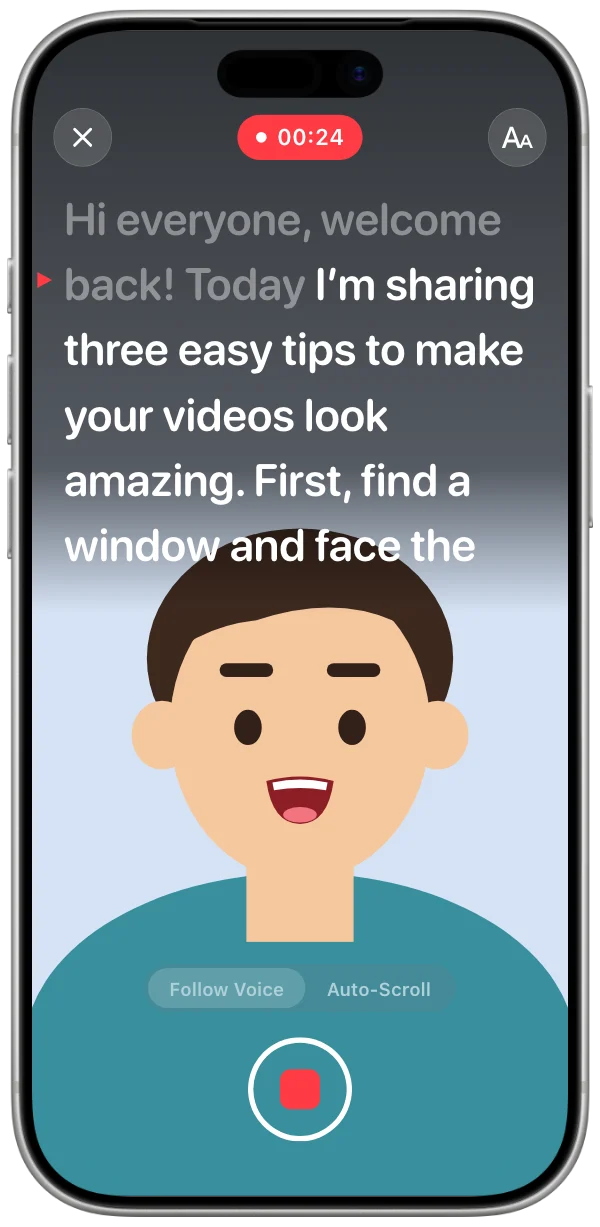
- Tap Teleprompter. It’s on the second page of the Record tab; swipe left to find it. The studio opens with your front camera filling the screen.
- Add a script. Tap New Script, or tap the script name at the top and then +. Give it a title and type or paste the text. Scripts are saved, so you can come back to them.
- Choose how it scrolls. Follow Voice listens and scrolls as you read. Auto-Scroll moves at a steady speed that you set with the slider.
- Set the text size. The text button at the top offers Small, Medium, Large and Extra Large, and Start from the Top.
- Record. Tap the record button. After a 3-2-1 countdown, start reading. Drag the script at any time to move the reading point. The flip button beside Record switches to the back camera.
- Save your take. Tap stop. The take plays back in a loop: tap Retake to try again or Save to add it to Videos, ready to edit and share.
How Follow Voice works
Follow Voice uses Apple’s speech recognition in your script’s language, on your iPhone when iOS supports it for that language. It matches the last few words you said against the next part of the script and scrolls to keep your place, dimming what you’ve already read. It keeps up when you skip a line, stumble over a word or ad-lib, ignores stray words and never jumps backwards.
If microphone or speech recognition access is off, or iOS can’t recognise the script’s language, ScreenFace switches to Auto-Scroll and tells you why. In Auto-Scroll, tap the script to pause or resume.
Tips for reading naturally
- Write the way you talk. Short sentences and everyday words are easier to read aloud and sound less scripted.
- Use bigger text from further away. If the iPhone is on a stand at arm’s length, pick Large or Extra Large.
- Mark your pauses. A new paragraph is a natural place to breathe.
- Rehearse once. A practice run with Auto-Scroll helps you find a comfortable speed.
- Face the light. A window or lamp in front of you does more than any camera setting.
The saved video
Teleprompter takes use your recording settings, so you can choose the resolution, frame rate, HEVC or H.264 and MP4 or MOV in Settings → Recordings. By default they’re a vertical 1080×1920 video, ready for Reels, Shorts and TikTok. Open the take in the editor to trim it, change its canvas or add a filter.
Frequently asked questions
Is there a teleprompter app for iPhone that follows your voice?
Yes. ScreenFace's Teleprompter has Follow Voice, which listens as you read and scrolls the script to keep your place, even when you skip a line or ad-lib.
Does the teleprompter work in my language?
Follow Voice uses Apple's speech recognition in your script's language, on the iPhone when iOS supports it. If your language isn't supported, ScreenFace switches to Auto-Scroll.
Can I record the teleprompter video with the back camera?
Yes. The flip button beside Record switches between the front and back cameras.
What size is a teleprompter video?
By default it's a vertical 1080×1920 video. You can change the resolution, frame rate and format in Settings → Recordings.