 ScreenFace
How to Screen Record with Your Face on iPhone
To screen record with your face on iPhone, open ScreenFace and tap React to any app. Your face appears in a small floating window. Tap the record button, start the iOS screen recording, then open any app. Come back and tap stop. You get one video with the screen, your face, your voice and the app’s sound.
iPhone’s built-in screen recorder can capture your screen and your microphone, but it can’t show your face. That’s what ScreenFace adds: a live camera window that floats over every app and is recorded together with the screen.
What you need
- An iPhone running iOS 18 or later.
- The ScreenFace app.
- Camera access for ScreenFace, and microphone access if you want your voice.
Step by step
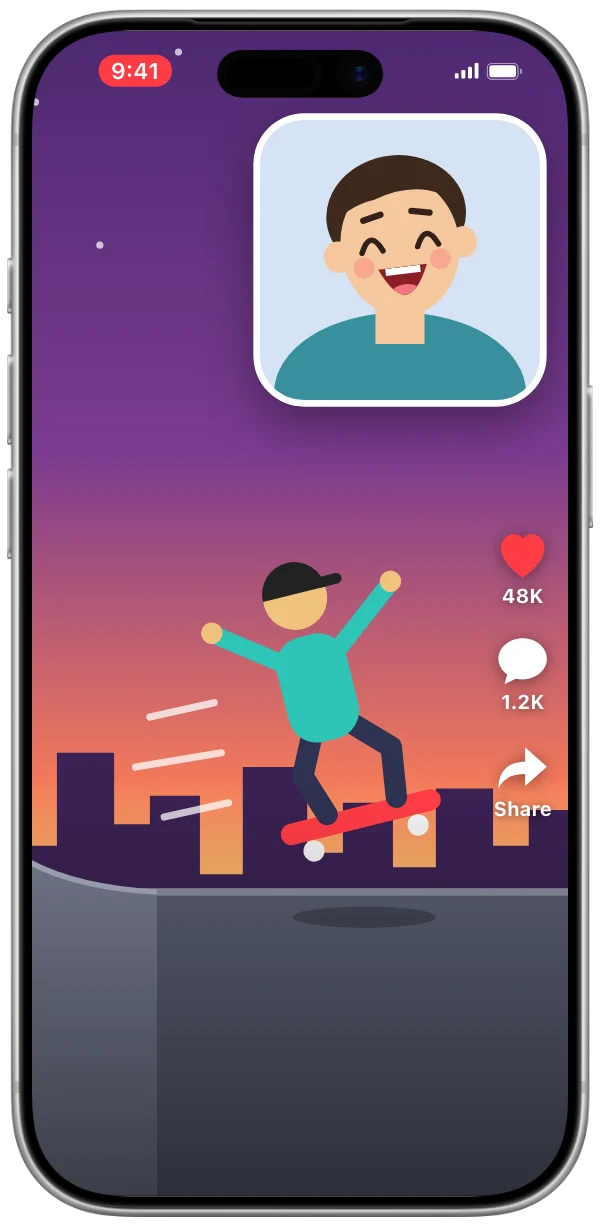
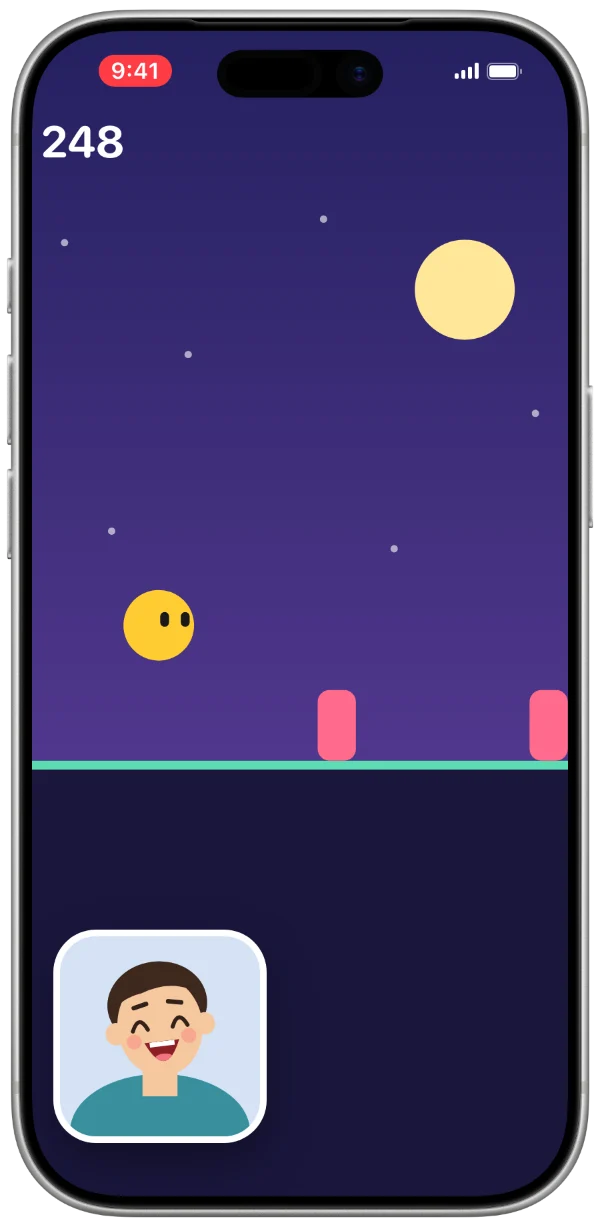
- Open ScreenFace and tap React to any app. A setup page opens and your front camera starts in a small floating window. Drag it to the corner you want before you begin. The flip button beside Record switches to the back camera.
- Tap the record button. iOS shows its screen recording prompt. Turn on the microphone if you want your voice, then tap Share Entire Screen. On iOS 18 to 26 you see the broadcast sheet instead: check that ScreenFace is selected, turn on the microphone and tap Start Broadcast.
- Open the app you want to record. Swipe up and open any app: a game, a website, a social app or your own app. Your face keeps floating on top. Drag the window to another corner if it covers something.
- Come back and stop. Return to ScreenFace and tap the stop button. You can also stop from the red screen recording indicator at the top of the screen.
- Watch, edit and share. ScreenFace cuts the part before you left the app, so the video starts in the app you recorded. It opens on its own page: tap Edit to trim or reframe it, Save to copy it to Photos, or Share to send it anywhere.
How the face gets into the video
ScreenFace puts your camera in a Picture in Picture window, the same floating window iOS uses for video calls. Because iOS records the whole display, that window is captured as part of the screen. Your face appears exactly where you saw it while recording, already in sync with your voice, with nothing to line up later.
Tips for a better recording
- Turn on a Focus or Do Not Disturb. Notifications that arrive while you record are captured too.
- Use headphones for the cleanest voice, especially when the app is loud.
- Trim the end. The start is trimmed for you, but the last seconds show ScreenFace when you come back to stop. Cut them with Trim, or stop from the iOS recording indicator instead.
- Pick the right shape. In the editor, Canvas turns the recording into 9:16 for TikTok, Reels and Shorts, 16:9 for YouTube, or 1:1 for a square post.
- Check the quality settings. Settings → Recordings lets you choose resolution up to 4K, frame rate up to 60 fps, HEVC or H.264 and MP4 or MOV.
Why some apps show up black
Some apps, including many streaming apps, block screen recording to protect their videos. iOS replaces that content with black in every screen recording, so it will be black in ScreenFace too. Everything else on screen, and your face, still records normally.
Frequently asked questions
Can iPhone screen record with your face?
Not on its own. The built-in screen recorder captures the screen and microphone but not the camera. ScreenFace adds a floating face cam window that iOS records together with the screen.
Does ScreenFace work in any app?
Yes, in any app you can open while recording: games, browsers, social apps and your own apps. Apps that block screen recording, such as many streaming apps, appear black.
Can I use the back camera instead of my face?
Yes. Tap the flip button beside Record to switch between the front and back cameras, before or during a recording.
Is there a watermark?
No. ScreenFace never adds a watermark, including on the 5 free recordings.