 ScreenFace
How to Make Reaction Videos on iPhone
The easiest way to make a reaction video on iPhone is with ScreenFace. Tap React to anything, choose a video or photo, place your face, and record yourself while it plays. To react to something inside another app instead, tap React to any app and your face floats over whatever you open.
Two ways to react
React to anything is for videos and photos saved on your iPhone, or a blank canvas to talk and draw on. ScreenFace plays the clip and records your face and voice over it, then renders a clean vertical video.
React to any app is for reacting live inside another app: scrolling a feed, playing a game or reading a website. It records the whole screen with your face in a floating window. See how to screen record with your face.
React to anything, step by step
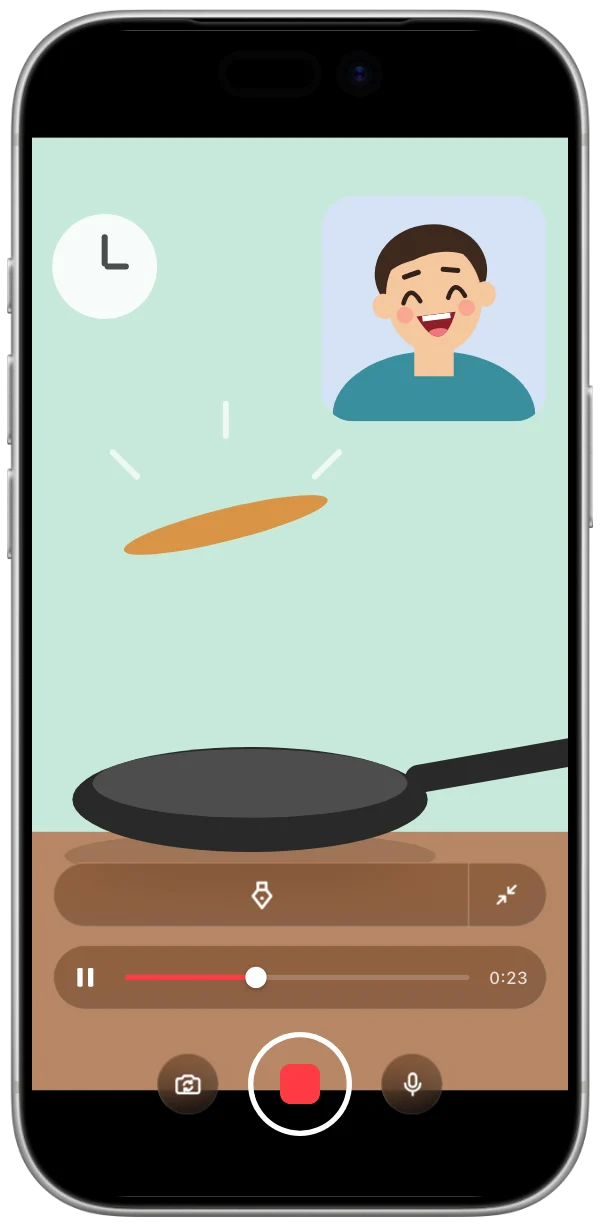
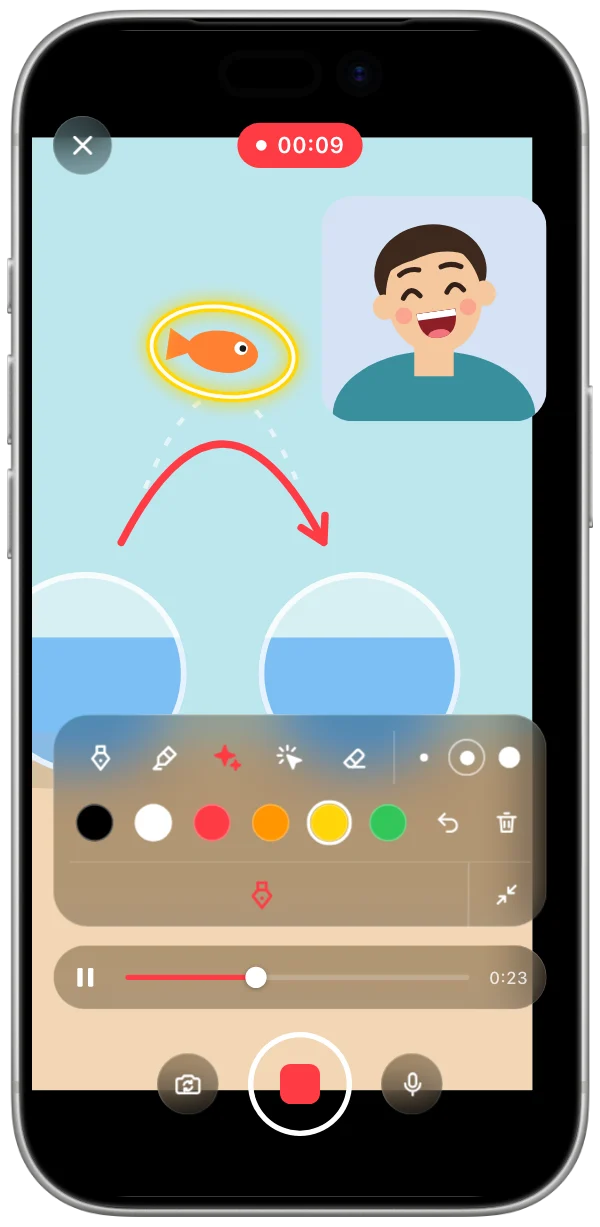
- Tap React to anything. The studio opens on your camera. Choose Photo or Video to pick a clip from Photos, or Blank canvas to start on a plain colour. ScreenFace uses the system picker, so it never needs access to your whole library.
- Place your face. It starts as a square in the top-right corner. Drag it anywhere and pinch to resize it. You can drag, pinch and twist the video or photo too. Both snap to the centre with a guide line.
- Pick a shape. Open Camera in the tools panel and choose Circle, Square or Portrait. Turn the camera off there to record only your voice.
- Pick the start point. Use the play bar above the record button to choose where the video starts.
- Record. Tap the record button. After a 3-2-1 countdown the video plays and the camera records you. The flip button switches cameras, and the mute button silences your voice, even mid-take.
- Pause, skip and draw while you talk. Tap the video to pause it, or drag the scrubber to jump ahead. Your camera keeps recording, so you can explain a moment, then carry on. Open Draw to circle or point at things as they happen.
- Review and save. Your take plays back in a loop. Move or resize your face, change its shape or the background colour, then tap Save. Not happy? Tap Retake.
Drawing on the video
Draw gives you a Pen, a wide Marker, glowing Neon, a Laser that fades a moment after you lift your finger, and an Eraser, in three sizes and nine colours, with Undo and Clear. Ink you draw before recording is there from the first frame. Ink drawn during the take appears in the video at the moment you drew it. Minimise the tools panel to a small side tab when you need the whole canvas.
What the finished video looks like
The saved reaction matches the preview exactly: a vertical 1080×1920 video with the background colour, your clip or photo, your face in the shape and spot you chose, and your drawing. It follows the clip’s frame rate, up to 60 fps. Your voice and the clip’s sound are kept separate, so in the editor you can turn the video down under your voice. To leave the clip’s sound out entirely, tap the speaker button in the play bar.
Tips for good reactions
- Wear headphones. ScreenFace uses Apple’s echo-cancelled microphone, but headphones keep the clip’s sound out of your voice completely.
- Face a window or lamp. Light on your face matters more than the camera.
- Keep your face off the action. Put it in a corner where nothing important happens, or stack the clip and your face.
- Pause to add something. Pausing the clip while you comment makes a reaction feel like commentary, not just watching.
- Use content you’re allowed to use. Platforms have their own rules about reusing other people’s videos. Add your own commentary and follow each platform’s guidelines.
Frequently asked questions
What is the best app to make reaction videos on iPhone?
ScreenFace records your face over any video or photo from your iPhone, with drawing, pausing and skipping while you talk. It saves a vertical video with no watermark.
Can I react to a YouTube or TikTok video?
Yes. Use React to any app to record your face over the YouTube or TikTok app while it plays. To use React to anything, the video must be saved in Photos first.
Can I draw on the video while I react?
Yes. Open Draw for a pen, marker, neon, laser and eraser in nine colours. Ink drawn during the take appears in the video at the moment you drew it.
Can I turn the original video's sound down?
Yes. Your voice and the video's sound are separate tracks, so the editor has separate Voice and Video volume sliders.