 ScreenFace
How to Record an App Demo or Tutorial on iPhone
To record an app demo or tutorial on iPhone with your face in it, use ScreenFace: tap React to any app, start the screen recording with the microphone on, walk through the app while you talk, then come back and tap stop. ScreenFace cuts itself out of the start; trim the end and pick a canvas size in the editor, and it’s ready to share.
Showing your face makes a walkthrough feel personal and keeps viewers watching. It works well for product launches, support videos, onboarding guides, bug reports and app reviews.
Before you record
- Plan the path. Write the three or four things you want to show, in order. Short demos are watched to the end.
- Prepare the app. Sign in, load sample data and close anything you don’t want seen.
- Turn on Do Not Disturb so notifications don’t appear in the video.
- Find good light and a quiet room, or use wired or wireless headphones with a microphone.
- Script your intro. For a spoken intro or outro to camera, read it with the Teleprompter.
Recording the demo
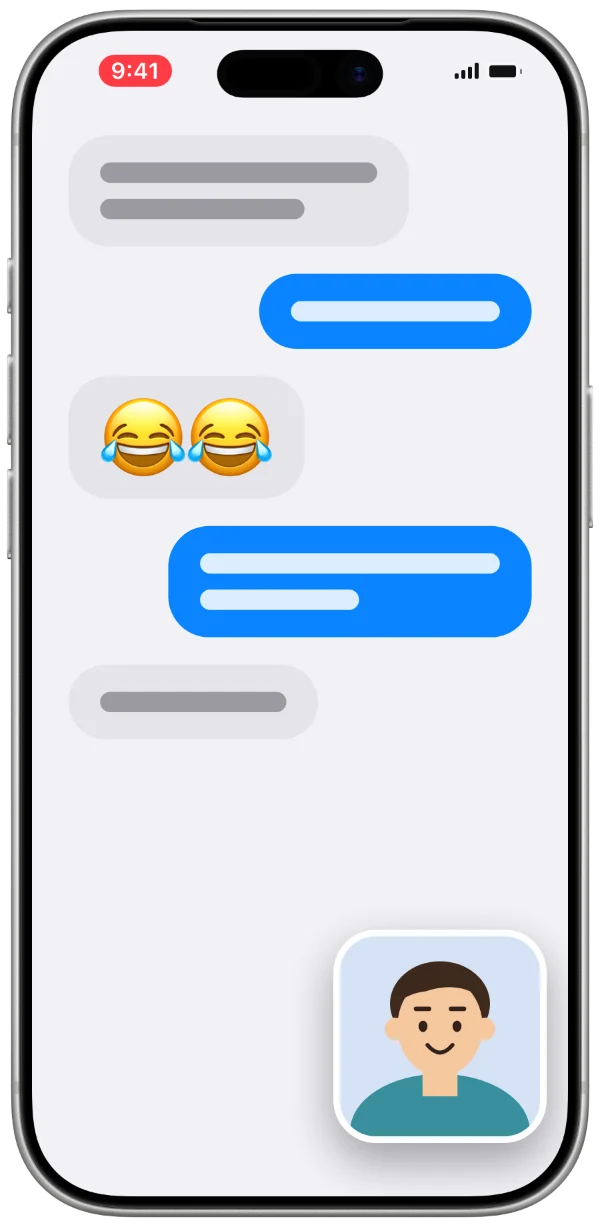
- Open ScreenFace and tap React to any app.
- Drag your face window to a corner that won’t cover the parts you’re showing.
- Tap the record button and approve the iOS prompt with the microphone on.
- Open the app you’re demoing and walk through your steps slowly, saying what you tap before you tap it.
- Return to ScreenFace and tap stop.
Editing and sizing
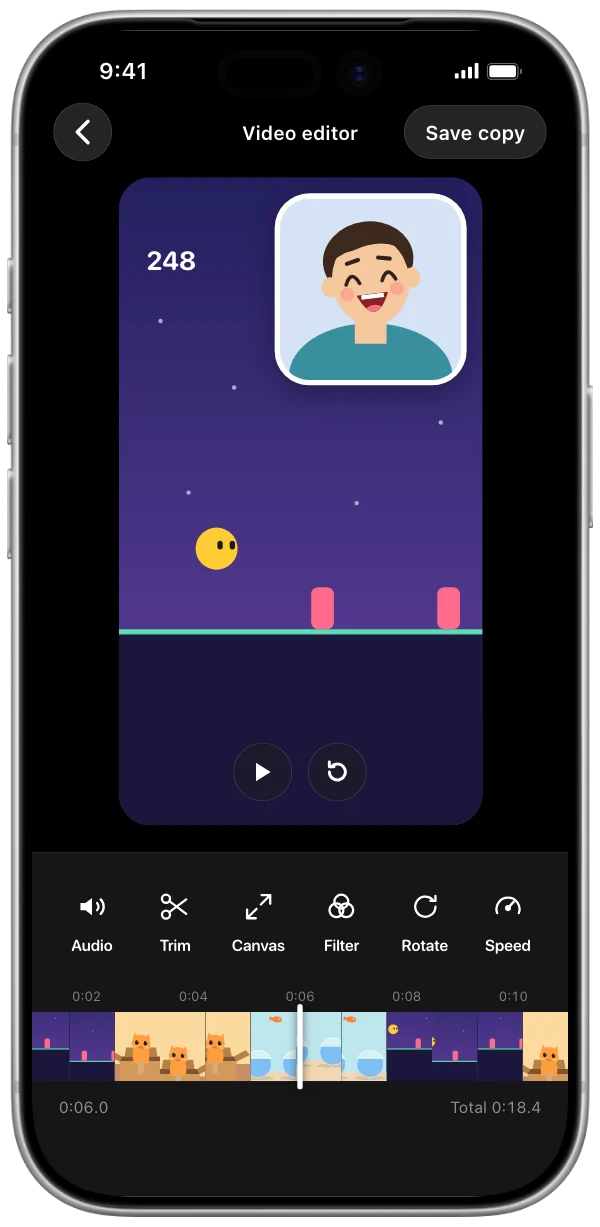
- Trim the end, where ScreenFace itself is on screen. The start is already trimmed.
- Canvas sets the shape: 9:16 for Reels, Shorts and TikTok, 16:9 for YouTube and presentations, 1:1 or 4:3 for posts. Scale the video from 50% to 200% to frame it.
- Speed runs from 0.25× to 4×, Rotate turns the video a quarter turn, and Filter adds a photo-style look.
- Save copy exports the edit as a new video and keeps the original.
- Rename the recording by tapping its title, so it’s easy to find and shared files carry a clear name.
Recording your own app as a developer
ScreenFace records whatever is on the display, so it works with TestFlight builds and apps you run from Xcode on a real iPhone. For App Store app previews, record without the face window and follow Apple’s app preview requirements; for social posts, launch videos and support guides, the face cam helps people connect with the person behind the app.
Frequently asked questions
How do I record a tutorial on my iPhone with my face?
Open ScreenFace, tap React to any app, start the recording with the microphone on, walk through the app while you talk, then come back and tap stop.
What aspect ratio should an app demo be?
9:16 for Reels, Shorts and TikTok, 16:9 for YouTube and presentations, and 1:1 or 4:3 for posts. Choose it with Canvas in the editor.
Can I record a TestFlight build or an app from Xcode?
Yes. ScreenFace records whatever is on the display, including TestFlight builds and apps run from Xcode on a real iPhone.
Can I use a face cam recording as an App Store app preview?
App previews have their own requirements from Apple. Record without the face window for those, and use the face cam for social posts, launches and support videos.