 ScreenFace
How to Record iPhone Gameplay with Face Cam
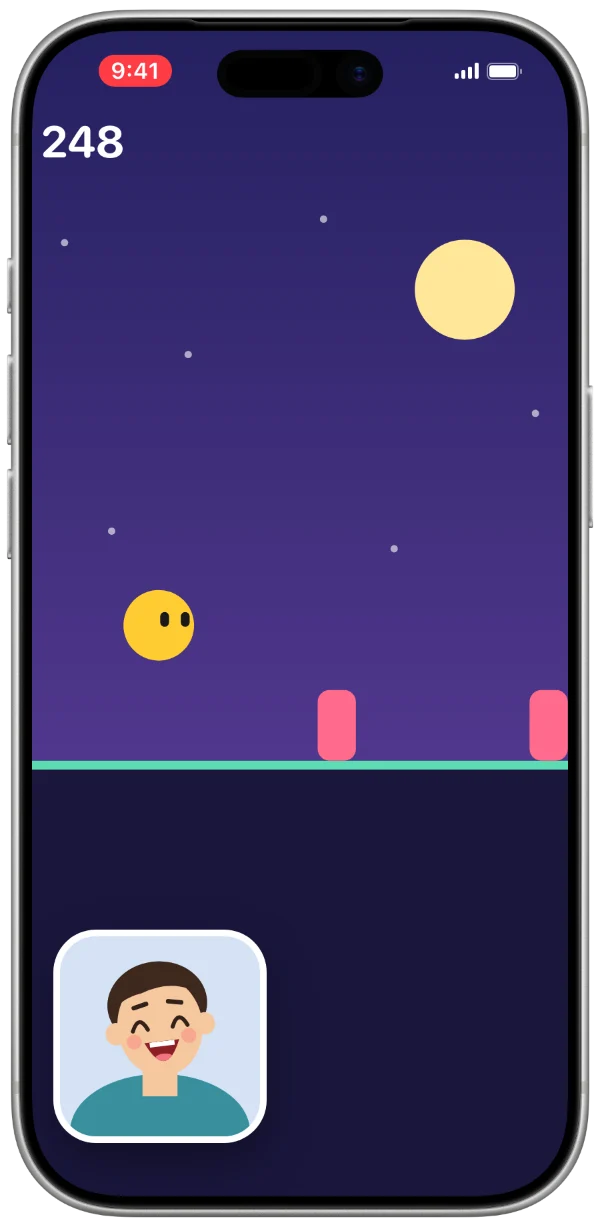
To record iPhone gameplay with a face cam, open ScreenFace, tap React to any app, tap record and start the iOS screen recording, then open your game. Your face floats over the game in a small window and is recorded with the gameplay, your voice and the game’s sound. Come back to ScreenFace and tap stop when you’re done.
Step by step
- Set quality first. In ScreenFace, open Settings → Recordings. For gameplay, choose 60 fps and Native resolution. HEVC keeps files smaller than H.264 at the same quality.
- Tap React to any app. Your face cam starts floating. Drag it to a corner away from the controls and the score.
- Start the recording. Tap the record button, turn on the microphone in the iOS prompt for commentary, and tap Share Entire Screen. On iOS 18 to 26, tap Start Broadcast.
- Open your game and play. Swipe up and open the game.
- Stop. Return to ScreenFace and tap stop, or stop from the red recording indicator.
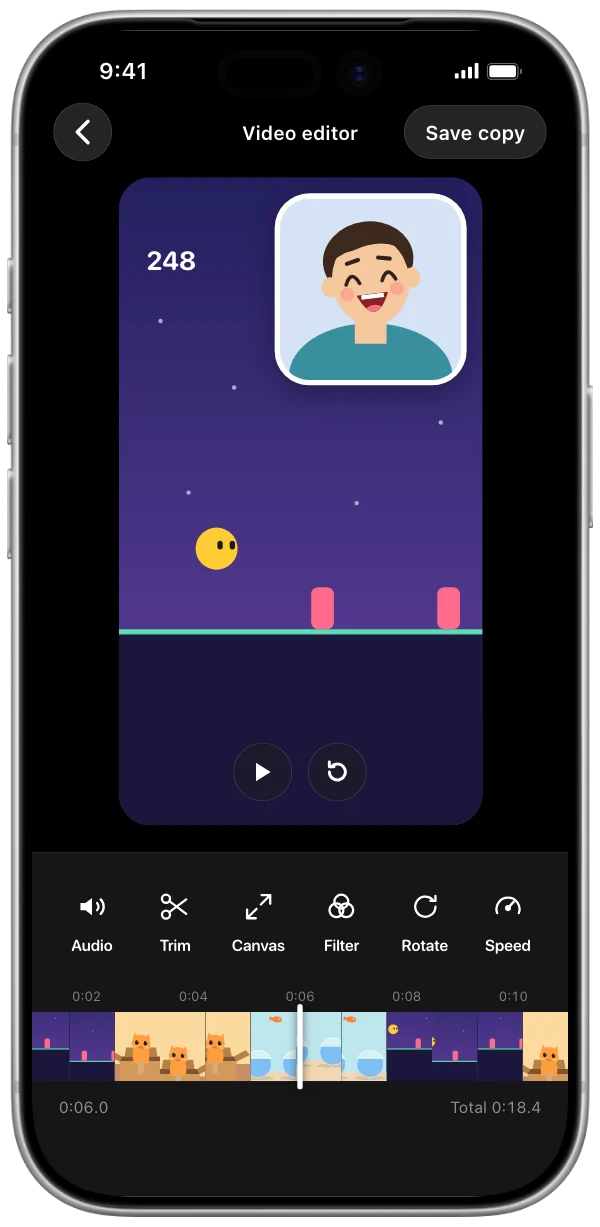
- Edit. The start is trimmed for you. Trim the end, and use Canvas to make it 16:9 for YouTube or 9:16 for Shorts and TikTok.
Tips for gameplay recordings
- Turn off Silent mode. Many games mute their sound when the iPhone is in Silent mode, so the recording would be silent too.
- Use headphones. Game sound is recorded directly, so you still get it in the video, and your microphone picks up only your voice.
- Balance the volumes afterwards. ScreenFace keeps your voice and the game sound on separate tracks. In the editor, turn the game down or your voice up.
- Turn on Do Not Disturb. Notifications and banners are recorded along with the game.
- Keep free space. Long 60 fps sessions use a lot of storage. Delete old takes or save them to Photos and remove them from the app.
- Keep your iPhone cool. Recording, the camera and a demanding game together work the iPhone hard. Take breaks on long sessions.
Stream it instead
To play live in front of an audience, Go live sends the same screen and face cam to Twitch, YouTube or any RTMP server. See how to live stream your iPhone screen.
Does it slow my game down?
Screen recording is done by iOS itself, just like the built-in screen recorder. The face cam runs at 720p, 30 fps, to keep the load low. Very demanding games on older iPhones may still drop frames while recording, as they would with any recorder.
Frequently asked questions
What is the best setting for recording iPhone gameplay?
In Settings → Recordings, choose Native resolution and 60 fps. HEVC keeps files smaller than H.264 at the same quality.
Why does my gameplay recording have no sound?
Many games mute their sound in Silent mode, so turn Silent mode off before you record. Also check the game's own volume.
Can I record gameplay and my voice at the same time?
Yes. Turn on the microphone in the iOS recording prompt. Your voice and the game sound are kept on separate tracks you can balance in the editor.
Can I stream my game live instead?
Yes. Go live sends the same screen and face cam to Twitch, YouTube or any RTMP server.