 ScreenFace
How to Make a Split-Screen Reaction Video on iPhone
To make a split-screen reaction video on iPhone, open ScreenFace, tap React to anything and choose a clip. Drag the clip to the top of the canvas, choose the Portrait face shape, and drag your face into the bottom half. Then record yourself while it plays. The result is a vertical 1080×1920 video ready for TikTok, Instagram Reels and YouTube Shorts.
ScreenFace doesn’t have a one-tap split-screen button. Instead, the reaction studio lets you place the clip and your face anywhere on a vertical canvas, so a split screen takes a few seconds to set up and you can make it exactly the way you like.
Step by step
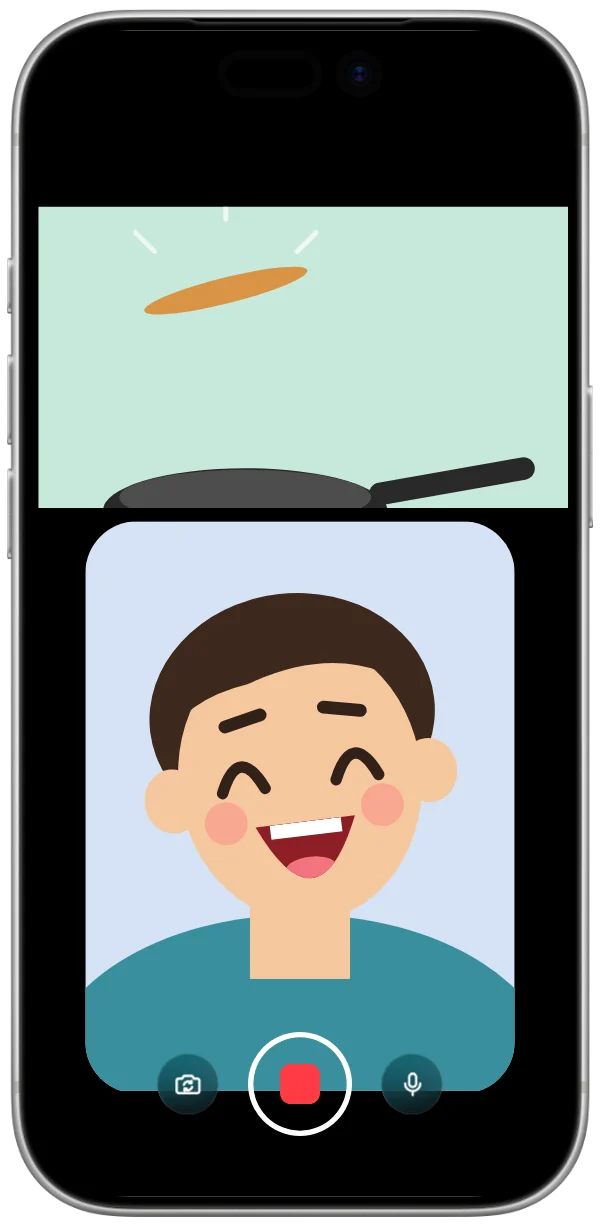
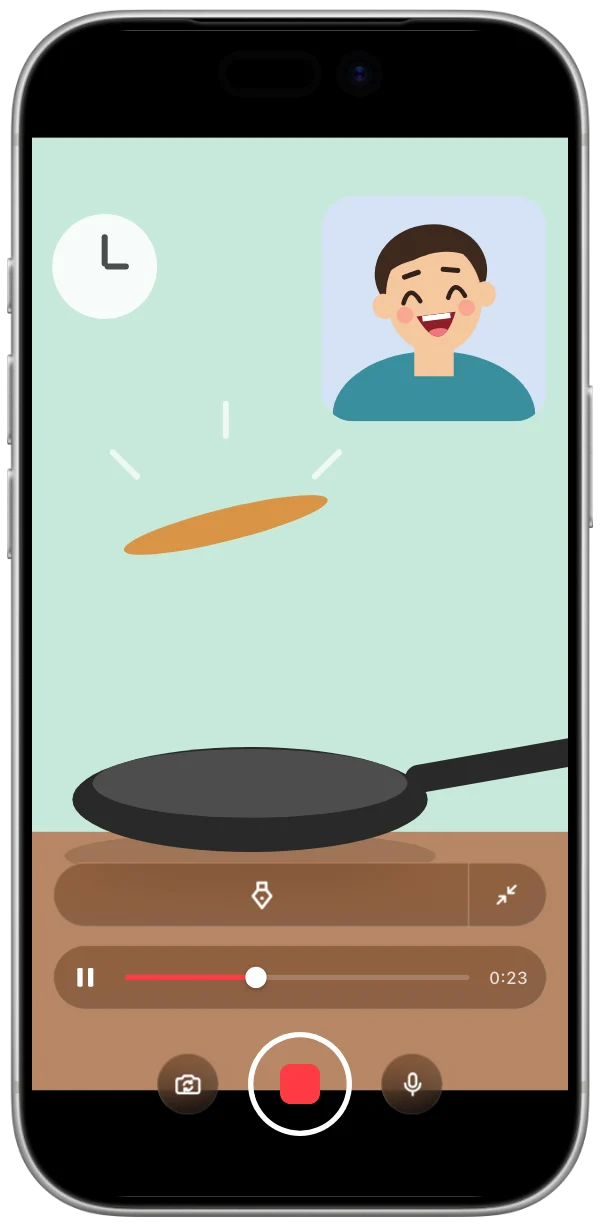
- Open ScreenFace and tap React to anything, then Photo or Video, and choose a clip.
- Drag the clip to the top of the canvas. A landscape clip fills the width; pinch to make it bigger if you want it to fill more of the top half.
- Open Camera in the tools panel and choose Portrait.
- Drag your face below the clip and pinch until it fills the bottom half. It snaps to the centre line, so it lines up with the clip.
- Want your face on top? Drag it to the top and the clip below.
- Use the play bar to choose where the clip starts.
- Tap record. After a 3-2-1 countdown the clip plays while you react. Pause or skip any time; the camera keeps rolling.
- Tap stop, review your take, and save. Share it from the playback page.
Why split screen works for short videos
A split screen gives the clip and your face the same space, so viewers see your reaction at full size instead of in a small corner. It also fills a phone screen in portrait without black bars, which suits feeds that are built for vertical video.
Getting the framing right
The clip can be scaled from 15% to 400% and your face up to a little wider than the canvas. Layers may hang off the edges, so you can crop a wide clip by making it bigger and letting its sides go off screen. Any space you leave empty shows the background colour, which you can change under Background. Pick clips where the action is near the middle, and sit so your face is centred in the camera.
Sound
Your voice and the clip’s sound are saved as separate tracks. Open the reaction in the editor to set Voice and Video volumes separately, for example to keep the clip quiet under your commentary. Headphones while recording give the cleanest voice.
Frequently asked questions
Does ScreenFace have a split-screen button?
No. You build the split screen yourself in a few seconds: clip on top, a Portrait face below, or the other way round.
What size is a split-screen reaction video?
A vertical 1080×1920 video, the 9:16 shape used by TikTok, Instagram Reels and YouTube Shorts.
Can I put my face on top and the video below?
Yes. Drag your face to the top half and the clip to the bottom half.
Can I make the original video quieter than my voice?
Yes. Open the reaction in the editor and set the Voice and Video volumes separately.